How to Track Form Submissions with Google Tag Manager (GTM): 4 Reliable Methods
If you want to track form submissions with Google Tag Manager, the most important question is not "which button should I track?"
The better question is: what proves that the form was actually submitted successfully?
A submit-button click alone is not proof of a successful submission. Someone can click the button with a required field missing, trigger a validation error, lose their connection, or hit a form error that never creates a lead. If you track the click as the conversion, your reports can count attempts instead of real submissions.
This guide shows four practical ways to track form submissions with GTM:
- Native Form Submission trigger
- Thank-you page trigger
- AJAX success-message tracking with Element Visibility
- dataLayer custom success event
The goal is to help you choose the right success signal, test failed submissions, and confirm the event in both GTM Preview and GA4 DebugView.
Tested September 2026 using a real GTM container and GA4 property. The test lab used static mock responses, so the results show browser behavior, GTM trigger behavior, dataLayer behavior, and GA4 receipt. They do not prove that a real CRM, database, or backend stored a lead.
Quick decision table
Start by matching the method to the way your form behaves.
| If your form... | Start with this method | Why | Watch out for |
|---|---|---|---|
| Can push an event after confirmed success | dataLayer success event | The form or site code can tell GTM when success actually happened | Requires developer access or a form tool that exposes a documented event |
| Sends visitors to a dedicated thank-you URL | Thank-you page | A unique success URL is simple to track | Reloading the thank-you page can count again |
| Shows an inline success message without changing URL | Element Visibility | GTM can watch for the success message after it appears | The success message should appear only after a real success response |
| Uses a standard HTML form submit | Form Submission + Check Validation | GTM can listen for the browser's native submit event | Many modern forms do not use a native submit event |
| Only gives you a clickable submit button | Submit-button click | Easy to set up | This is the weakest signal because failed attempts can be counted |
This is a decision aid, not an absolute ranking. The right method depends on how your form is built.
Tested methods summary
Here is what the September 2026 lab confirmed.
| Method | Tested | Result | Caveat |
|---|---|---|---|
| Native Form Submission | Yes, September 2026 | A valid native submit fired once. A validation-blocked submit did not fire. | Does not prove backend lead save. |
| Thank-you Page | Yes, September 2026 | The success URL fired. Reloading the thank-you page fired again. | Reloads can create duplicate counts. |
| AJAX Success Message | Yes, September 2026 | Element Visibility fired after the mock HTTP success response showed the success element. Failure did not fire. | UI success is not backend proof unless it is tied to real success logic. |
| dataLayer Success Event | Yes, September 2026 | wlg_form_success triggered a GA4 generate_lead event in DebugView. |
Strongest when pushed only after confirmed success. |
Method 1 - Native Form Submission trigger
Use this method when your form uses a normal browser form submission. This usually means the browser can detect a native submit event.
In GTM, create a Form Submission trigger:
- Go to Triggers.
- Create a new Form Submission trigger.
- Turn Wait for Tags on.
- Set the max wait time to around 2000ms.
- Turn Check Validation on.
- Fire on Some Forms.
- Use a condition such as Form ID equals your form ID.
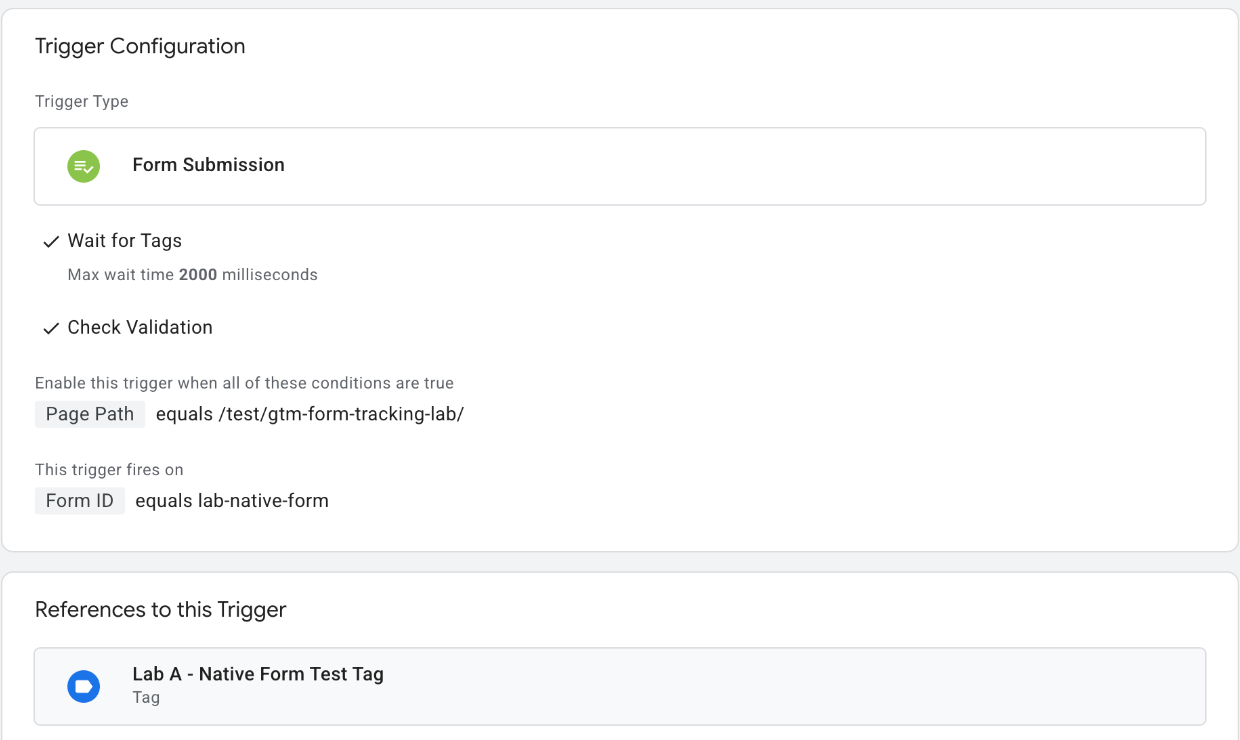
The native test form used:
- Page Path equals
/test/gtm-form-tracking-lab/ - Form ID equals
lab-native-form - Wait for Tags ON
- Check Validation ON
What the test showed
When the required select field was left empty, the browser blocked the submission through HTML5 validation. The GTM test tag did not fire.
When a valid option was selected, GTM saw the Form Submit event and Lab A - Native Form Test Tag fired 1 time.
That is the behavior you want from a native submit trigger: failed validation does not count, but a valid native submit can count.
A native submit event still does not prove that your backend stored the lead. It proves GTM saw the browser submit the form.
Method 2 - Thank-you page trigger
A dedicated thank-you page gives you a URL to track when every successful submission redirects there.
Example:
/thank-you/
/contact-thank-you/
/demo-request-received/
In GTM, create a Page View trigger:
- Go to Triggers.
- Create a new Page View trigger.
- Fire on Some Page Views.
- Use a condition such as Page Path equals
/thank-you/. - Attach your GA4 event tag to that trigger.
The lab's thank-you trigger used:
- Page Path equals
/test/gtm-form-tracking-lab/thank-you/
What the test showed
When the required select field was empty, the browser did not navigate to the thank-you page.
When a valid option was selected, the browser reached the thank-you page and the test tag fired.
When the thank-you page was reloaded, the tag fired again. Tag Assistant showed a total of Fired 2 times.
A thank-you page is often simple and dependable, but a plain Page View trigger can count reloads. The duplicate result observed in this lab came from a reload of the thank-you page.
For a small business site, this method is often a good starting point if the form can redirect to a unique success URL. Just remember that it measures the page view, not a backend confirmation.
Method 3 - AJAX success message with Element Visibility
Many modern forms submit without reloading the page or opening a thank-you URL. The visitor clicks submit, the form sends a request in the background, and a success message appears on the same page.
In GTM, create an Element Visibility trigger:
- Go to Triggers.
- Create a new Element Visibility trigger.
- Use CSS Selector as the selection method.
- Enter the selector for the success message, such as
#form-success. - Set the trigger to fire once per page.
- Turn Observe DOM changes on.
- Use a low visibility threshold, such as 1 percent, if the message may appear in a small area.
The lab's success element had this selector:
#lab-ajax-successThe trigger used:
- CSS selector:
#lab-ajax-success - Fire frequency: Once per page
- Minimum Percent Visible: 1
- Observe DOM changes: ON
What the test showed
In the success case, the page received a mock HTTP success response. Only then did it show the success element. GTM detected the element and Lab C - AJAX Success Test Tag fired 1 time.
In the failure case, the success element did not appear. The tag did not fire.
Element Visibility can be better than a click trigger for AJAX forms because it waits for something that looks like success instead of counting the button press.
A visible success message is only as trustworthy as the form logic behind it. If a site shows "Thanks" before the server actually accepts the message, the trigger can still be too early.
Method 4 - dataLayer success event
Use this method when the site or form tool can push a custom event after the form has succeeded.
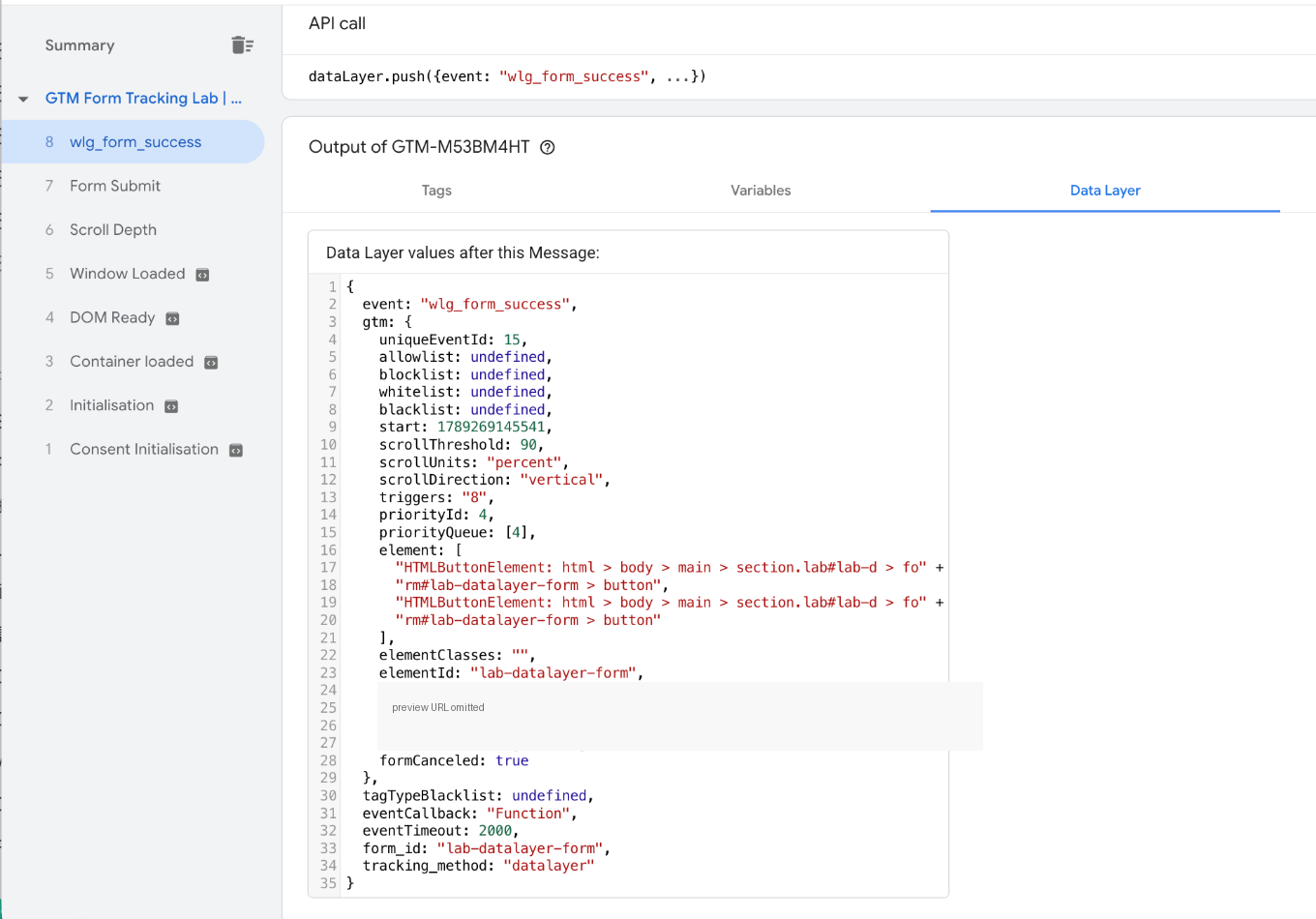
The lab form pushed this success event:
window.dataLayer.push({
  event: 'wlg_form_success',
  form_id: 'lab-datalayer-form',
  tracking_method: 'datalayer'
});
The payload did not include name, email, message, phone number, or any other personal information.
In GTM, create a Custom Event trigger:
- Go to Triggers.
- Create a new Custom Event trigger.
- Set the event name to the custom event your site pushes.
- In this lab, the event name was
wlg_form_success. - Add a page condition if needed, such as Page Path equals the form page.
What the test showed
In the failure case, wlg_form_success did not occur and the test tag did not fire.
In the success case, the lab received a mock HTTP success response first. Then it pushed wlg_form_success to the dataLayer. Tag Assistant showed the custom event, and Lab D - dataLayer Success Test Tag fired 1 time.
This was the strongest success signal in the lab because the event happened after the success response, not before.
That does not mean dataLayer is always best for every form. It means that when a site can push a clean event after confirmed success, GTM can use that event as a more direct signal than a click or a generic form submit.
Send the event to GA4 as generate_lead
For lead forms, use one event name consistently in GA4. Google's recommended event for initial lead acquisition, including form-generated leads, is:
generate_leadIn GTM, create a GA4 Event tag:
- Choose your Google tag or GA4 Measurement ID.
- Set the event name to
generate_lead. - Add useful non-PII parameters.
- Attach the trigger for the method you chose.
For the dataLayer method tested in September 2026, the GA4 event used:
- Event name:
generate_lead - Trigger: Lab D - dataLayer Success
form_id = {{DLV - form_id}}tracking_method = {{DLV - tracking_method}}
Useful parameters can include:
form_idform_locationtracking_method
Do not send form input values to GA4. Avoid names, email addresses, phone numbers, message text, company names, or anything else that can identify a person.
Verify with GTM Preview and GA4 DebugView
Do not publish your GTM workspace just because a tag looks correct in the editor. Test it first.
Test the success case
In GTM Preview:
- Open Preview.
- Enter the page with the form.
- Submit the form in the way a real visitor would.
- Confirm that the intended tag fires once.
In GA4 DebugView:
- Open GA4 DebugView.
- Submit the form while GTM Preview is active.
- Look for
generate_lead. - Open the event and check the parameters.
In the September 2026 lab, DebugView received 1 generate_lead event from Lab D. The parameters were:
form_id:lab-datalayer-formtracking_method:datalayer
Duplicate generate_lead was not observed in that Lab D run.
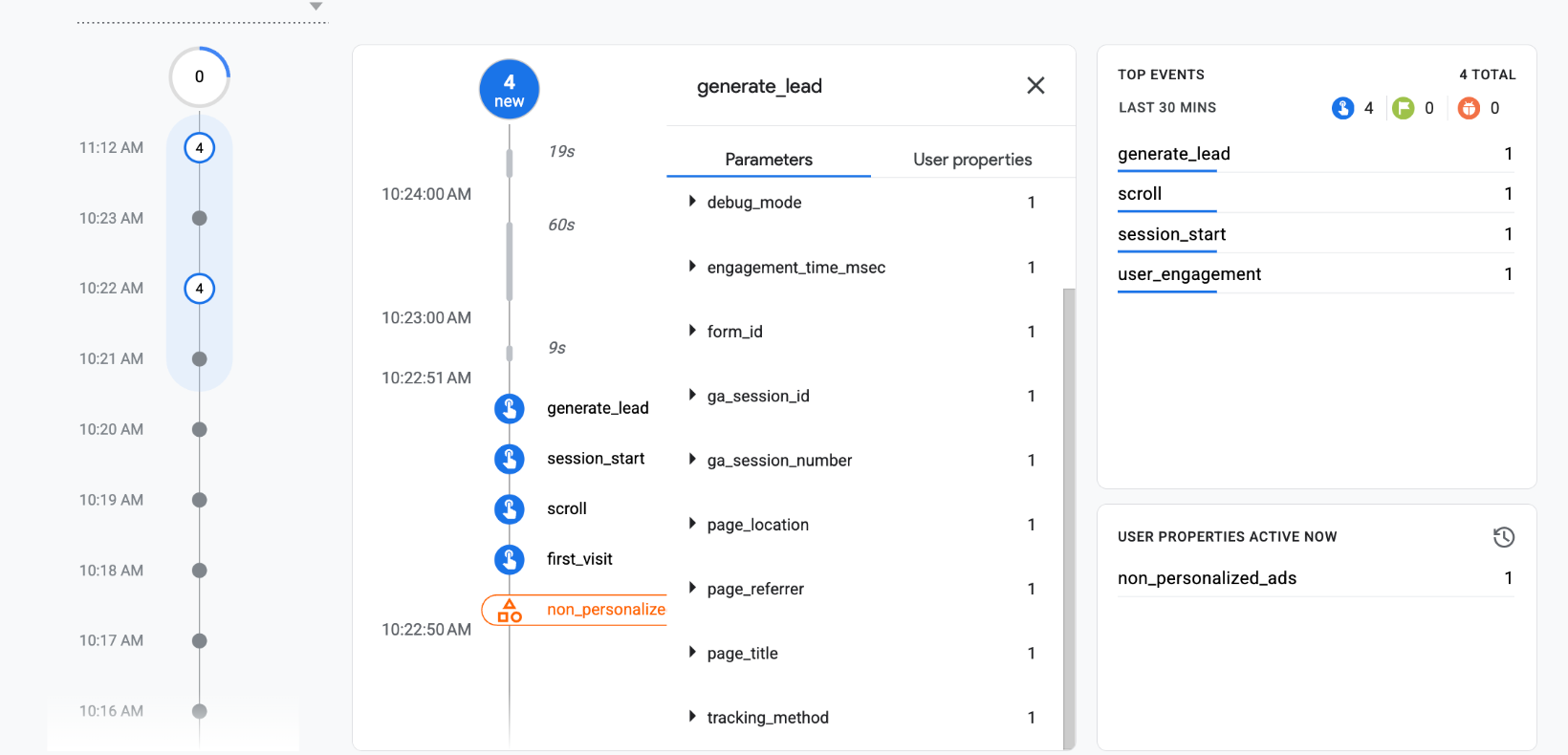
If the event appears in DebugView, you have confirmed that the test event reached GA4. That is not the same as confirming that the GTM container has been submitted and published to production.
Test the failure case
This is the step many setups skip.
Try to submit the form with required fields missing. Try the form's failure state if you can trigger one safely. Watch whether the conversion tag fires.
In the lab:
- Native form validation failure did not fire the native form tag.
- AJAX failure did not show the success element, so the Element Visibility tag did not fire.
- dataLayer failure did not push
wlg_form_success, so the custom event tag did not fire.
If your tag fires on a failed attempt, you are probably tracking too early.
Duplicate tracking pitfalls
Most bad form tracking comes from either counting too early or counting twice.
Watch for these cases:
- A thank-you page reload fires the same Page View trigger again.
- A click trigger and a submit trigger both send
generate_lead. - GA4 Enhanced Measurement may collect form interactions such as
form_startandform_submitautomatically when Form interactions are enabled. - An existing plugin or form tool may already send its own form event.
- A form tool sends its own event and your GTM setup sends another one.
- A success message stays visible after reload or after browser back navigation.
The September 2026 lab directly confirmed the thank-you reload duplicate risk. It did not test every duplicate scenario above, so treat the rest as implementation checks, not lab results.
In the Lab D run, a duplicate form_submit event was not observed. That result is separate from the general check above. Before adding your own generate_lead event, use GTM Preview and GA4 DebugView to see whether form_submit, a plugin event, or a form-tool event is already being sent.
Before publishing your GTM workspace, make one clean test submission and confirm that only one generate_lead event reaches GA4.
Embedded and iframe forms are a special case
Embedded and iframe forms need separate expectations.
If the form is inside an iframe from another service, your parent-page GTM container may not be able to see the internal form fields, submit event, success message, or button click. In that case, normal Form Submission and Element Visibility triggers can fail because the thing you want to track is not available to your page.
Better options are:
- Use a vendor callback if the form provider offers one.
- Use a documented
postMessageevent if the iframe sends one to the parent page. - Use a documented dataLayer event if the provider supports it.
- Redirect successful submissions to a thank-you page you control, if that option exists.
The September 2026 lab did not test iframe tracking and did not test HubSpot iframe forms. Do not treat the four tested methods as proof that iframe forms behave the same way.
Privacy and PII
Keep form tracking boring from a privacy point of view.
For GA4 and dataLayer events, send only operational labels that help you understand the event:
- which form fired
- which page or section the form was on
- which tracking method was used
Avoid personal data:
- email address
- phone number
- name
- message text
- appointment details
- company name if it can identify the visitor
Lab D used form_id and tracking_method only. That is the kind of parameter pattern to copy.
FAQ
What is the best GTM trigger for form submissions?
There is no single best trigger for every form. If your site can push a dataLayer event after confirmed success, that is often the strongest signal. If your form redirects to a unique thank-you page, a Page View trigger may be simpler. If your form shows an inline success message, Element Visibility can work well. If your form uses native HTML submission, Form Submission with Check Validation is a good test.
Should I track submit-button clicks?
Only with care. A submit-button click alone is not proof of a successful submission. It can still be useful as a diagnostic event, but it is usually too early to use as your main lead conversion.
Why did my Form Submission trigger not fire?
Your form may not use a native browser submit event. Many AJAX forms intercept the submit, send a background request, and show an inline success message. In that case, test Element Visibility or a dataLayer custom event instead.
Why did my thank-you page conversion fire twice?
The simplest reason is reload. In the lab, the thank-you page trigger fired once on the valid redirect and again when the thank-you page was reloaded. If your thank-you URL can be refreshed or revisited, account for that duplicate risk.
Does DebugView mean my GTM container is live?
No. If an event appears in DebugView, you have confirmed that the test event reached GA4. You have not necessarily confirmed that the GTM workspace has been submitted and published to production.
What should I check before publishing?
Check one successful submission and one failed submission. Confirm the intended tag fires exactly once on success, does not fire on failure, and sends generate_lead to GA4 without personal information.
Next step
If your tracking is already built, test it before you publish. A few minutes in GTM Preview and GA4 DebugView can catch the problems that make form conversion reports misleading: failed attempts counted as leads, reloads counted twice, and events that never reach GA4.
If you are still choosing a method, start with the success signal. A reliable setup does not begin with the button. It begins with the clearest proof that the submission actually succeeded.